Table of Contents
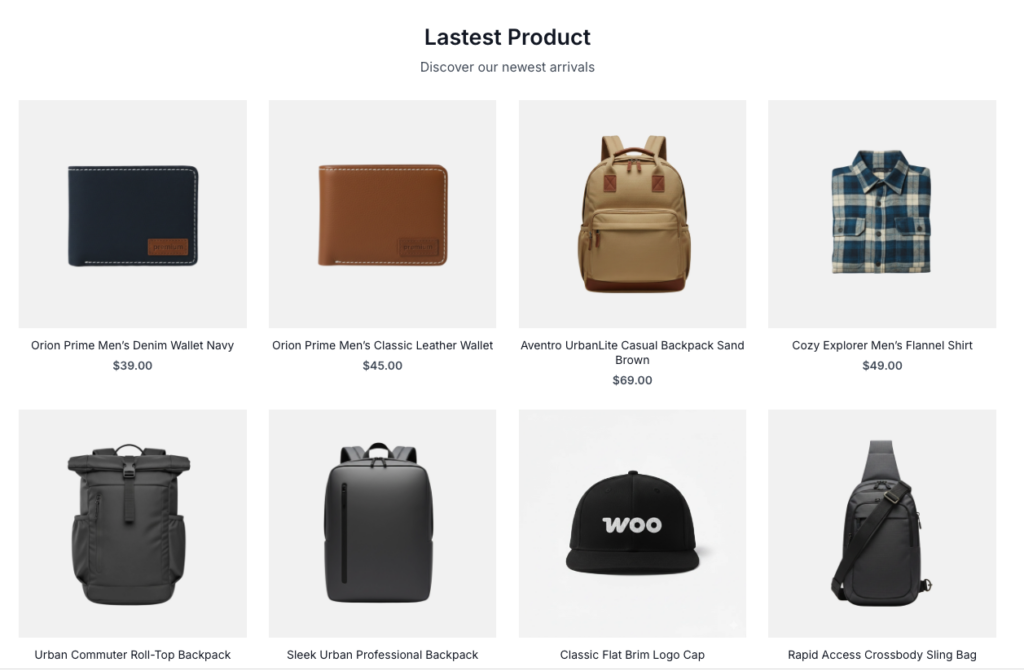
This section explains the custom Product Catalog block used to display products. The block is built with the Block Editor and can be added to any page, including the homepage.
Adding the Block #
To add the Product Catalog block:
- Drag and drop it into the editor area.
- Open the Block Editor.
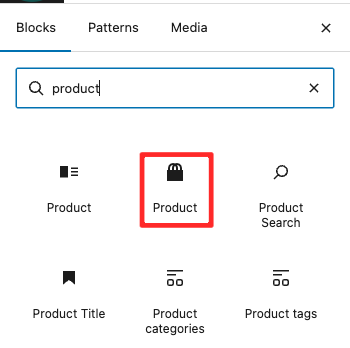
- In the block sidebar, type “Product” in the search field.
- Select the block with the cart icon.
Block Settings #
To open the block settings click the bock area or sidebar settings icon in the top-right corner of the editor.
Query Settings #
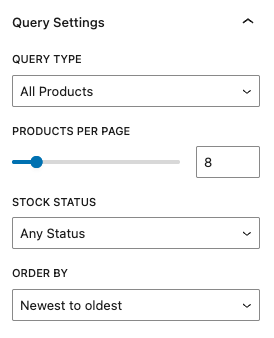
- Query Type – Choose which products to display, such as Latest Products, products by Category, products by Tag or another query.
- Products Per Page – Set the number of products displayed.
- Stock Status – Filter products by stock availability.
- Order By – Control the product sorting order.
Layout Settings #
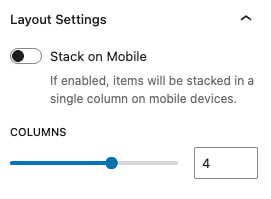
- Stack on Mobile – By default, products are displayed in two columns on mobile. Enable this option to show one product per row with a larger layout.
- Columns – Set the number of products per row on desktop. This will automatically adjust to two columns on mobile.