Table of Contents
The footer offers multiple layout options. Some layouts include columns that use a widget-based system, allowing you to add and manage content easily.
Footer Settings #
You can configure the footer layout from: Appearance → Customize → Footer.


Adding Widgets to the Footer #
To add widgets to the footer layout columns:
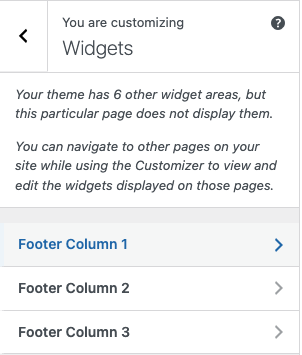
- Go to Appearance → Customize → Widgets.
- Select the desired footer column location, such as Footer Column 1 to Footer Column 4, based on the footer layout you selected previously.
- Click Add a Widget.
- Choose the widget you want to use (for example: Text, Navigation Menu, or Custom HTML).
- Configure the widget settings according to your needs.
- Click Publish to save your changes.
This allows you to fully customize each footer column based on your chosen layout.