Table of Contents
This section explains the custom Image Slider block, which is used to display images in a slider or carousel format. You can upload different images for desktop and mobile to ensure your banners and sliders are more optimized for each device.
Adding the Block #
To add the Image Slider block:
- Open the Block Editor.
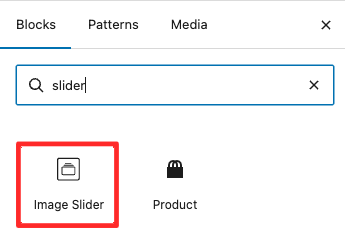
- Type “Image Slider” in the block search.
- Drag and drop the block into the editor area.
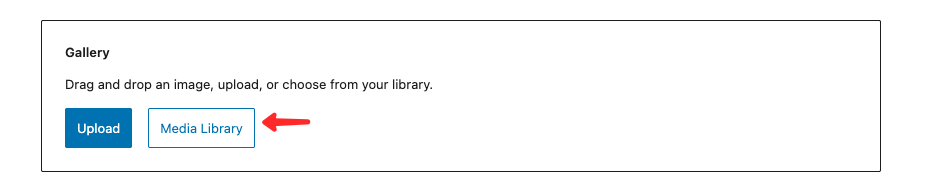
- Click Media Library to add images.
- Select images and arrange them by drag and drop to set the slide order.
Adding Links to Images #
To add a link to an image:
- Click the Image Slider block.
- Select the slide you want to edit.
- Click the Link icon.
- Enter the destination URL.

Using Different Images for Mobile #
To set a different image for mobile view:
- Click the Image Slider block.
- Select the slide you want to edit.
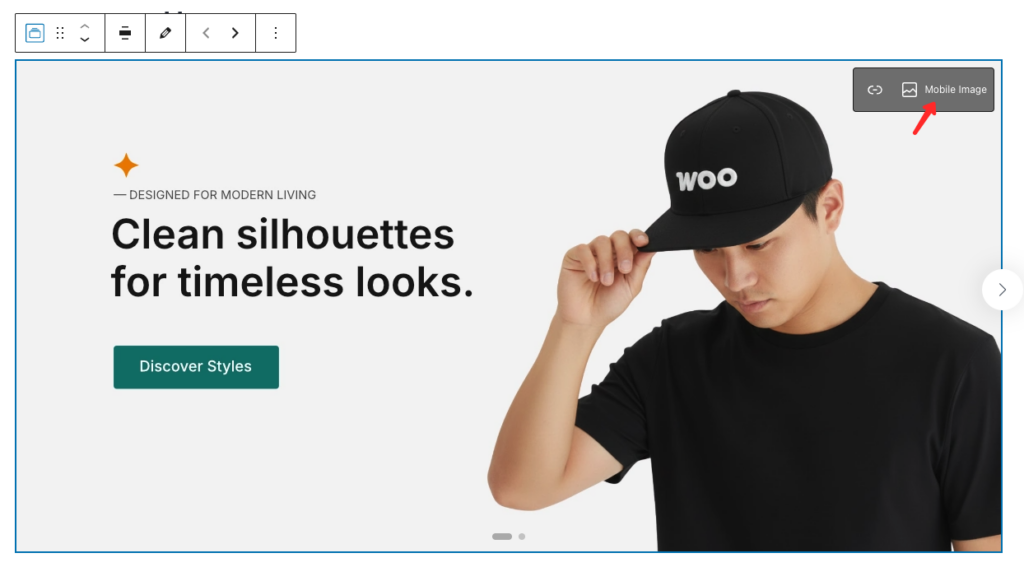
- Click the Mobile Image icon or button.
- Choose an image optimized for mobile devices.
The mobile image will be displayed on devices with a maximum screen width of 480px.